> ## Documentation Index
> Fetch the complete documentation index at: https://help.uninote.ai/llms.txt
> Use this file to discover all available pages before exploring further.
# Edit and Delete Folders
You can edit folder names and members, as well as delete unnecessary folders.
***
### Steps: Edit a Folder
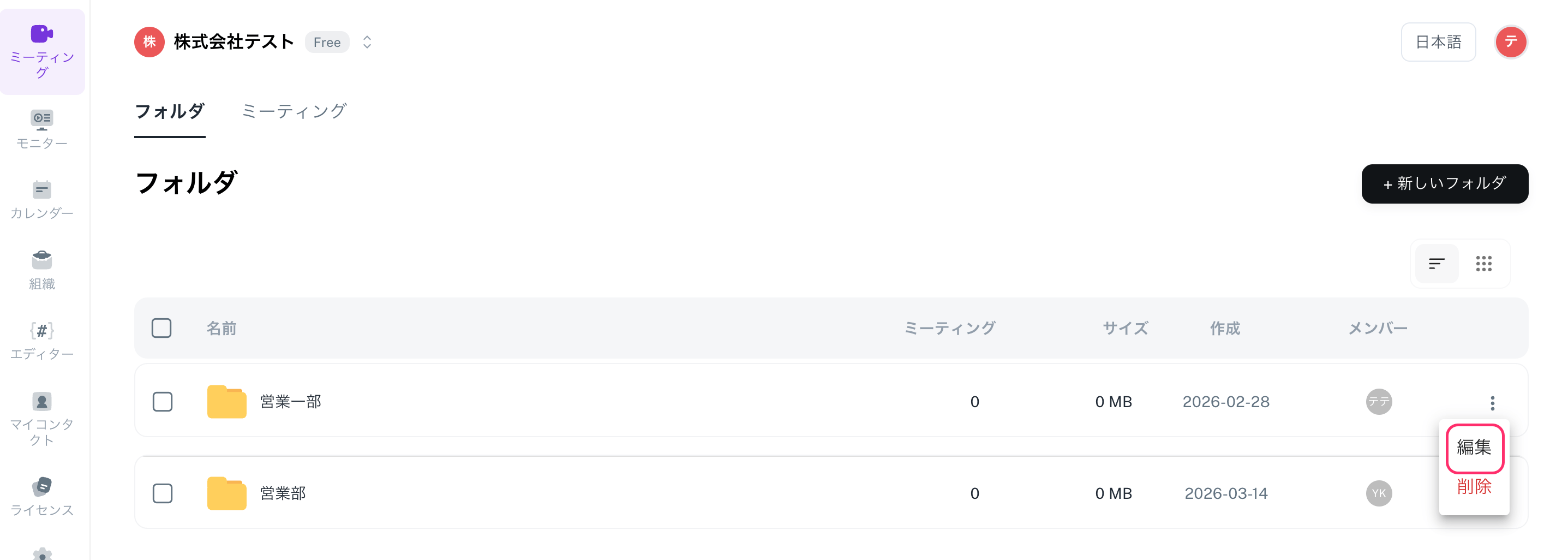
1. Open the \[Meetings] screen.
2. Hover over the folder you want to edit and click on the \[…] (menu).
3. Select \[Edit].
4. Change the folder name or the folder members and update.
***
### Steps: Delete a Folder
**Deleting a folder does not delete the meetings within it**. Meetings will remain in a "no folder" state.
1. Open the \[Meetings] screen.
2. Hover over the folder you want to delete and click on the \[…] (menu).
3. Select \[Delete] to complete the process.
 ***
### Related Pages
* [Create a Folder (Meeting Storage)](/en/forudamtingunokiwosuru)
***
### Related Pages
* [Create a Folder (Meeting Storage)](/en/forudamtingunokiwosuru)