> ## Documentation Index
> Fetch the complete documentation index at: https://help.uninote.ai/llms.txt
> Use this file to discover all available pages before exploring further.
# Add Users (Invite)
There are three methods to add (invite) users.
* Email invitation (for small groups)
* CSV bulk (to add multiple users at once)
* Invitation link (to distribute a participation link)
***
### Pre-check
* Choose an invitation method (Email invitation / CSV bulk / Invitation link)
***
### Common: Open the Invitation Screen
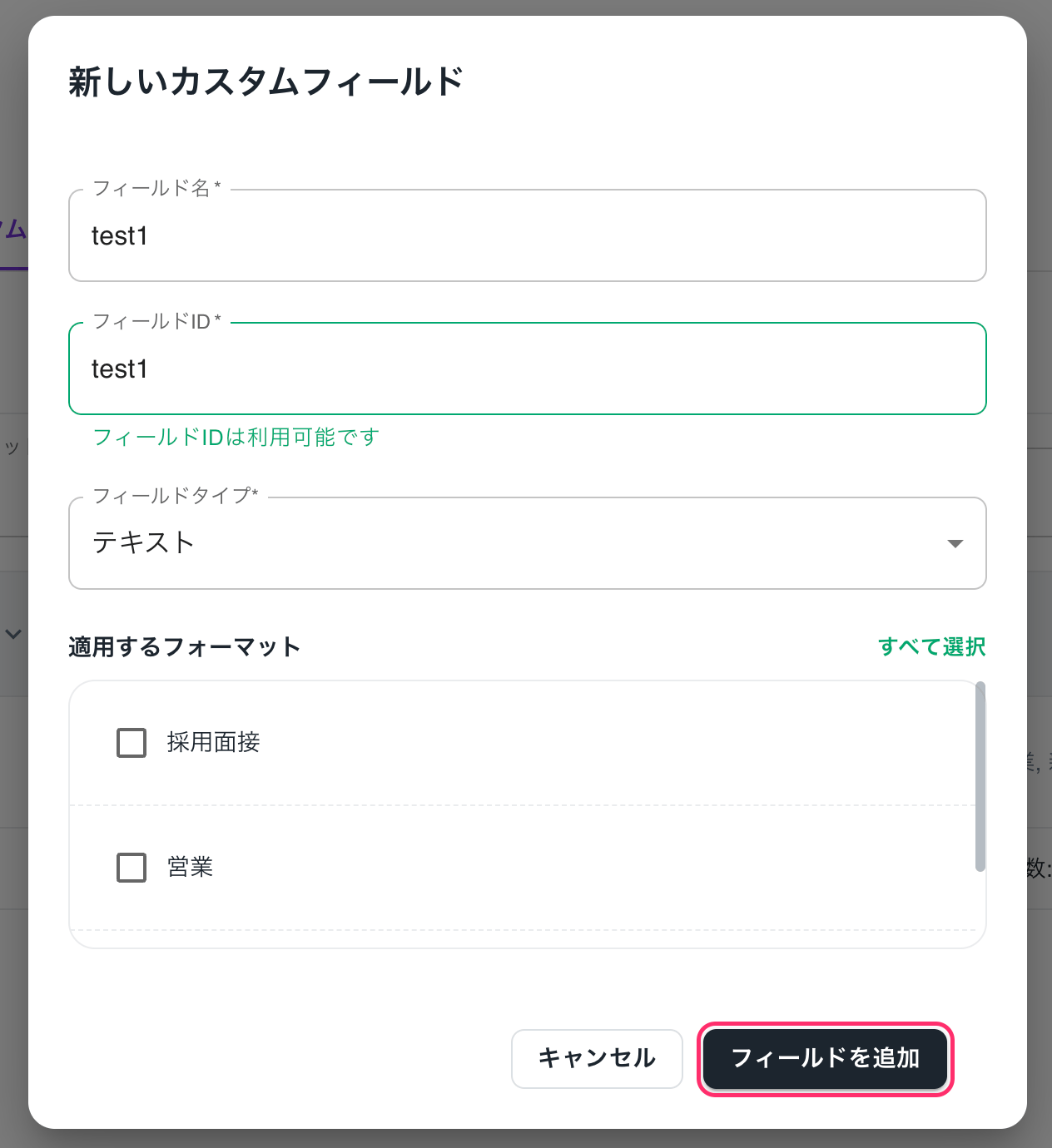
1. Open the \[Users] screen.
2. Select \[Add User].\\
 ***
* Invite via Email
1. Select \[Send] and enter the email address of the invitee.
***
* Invite via Email
1. Select \[Send] and enter the email address of the invitee.
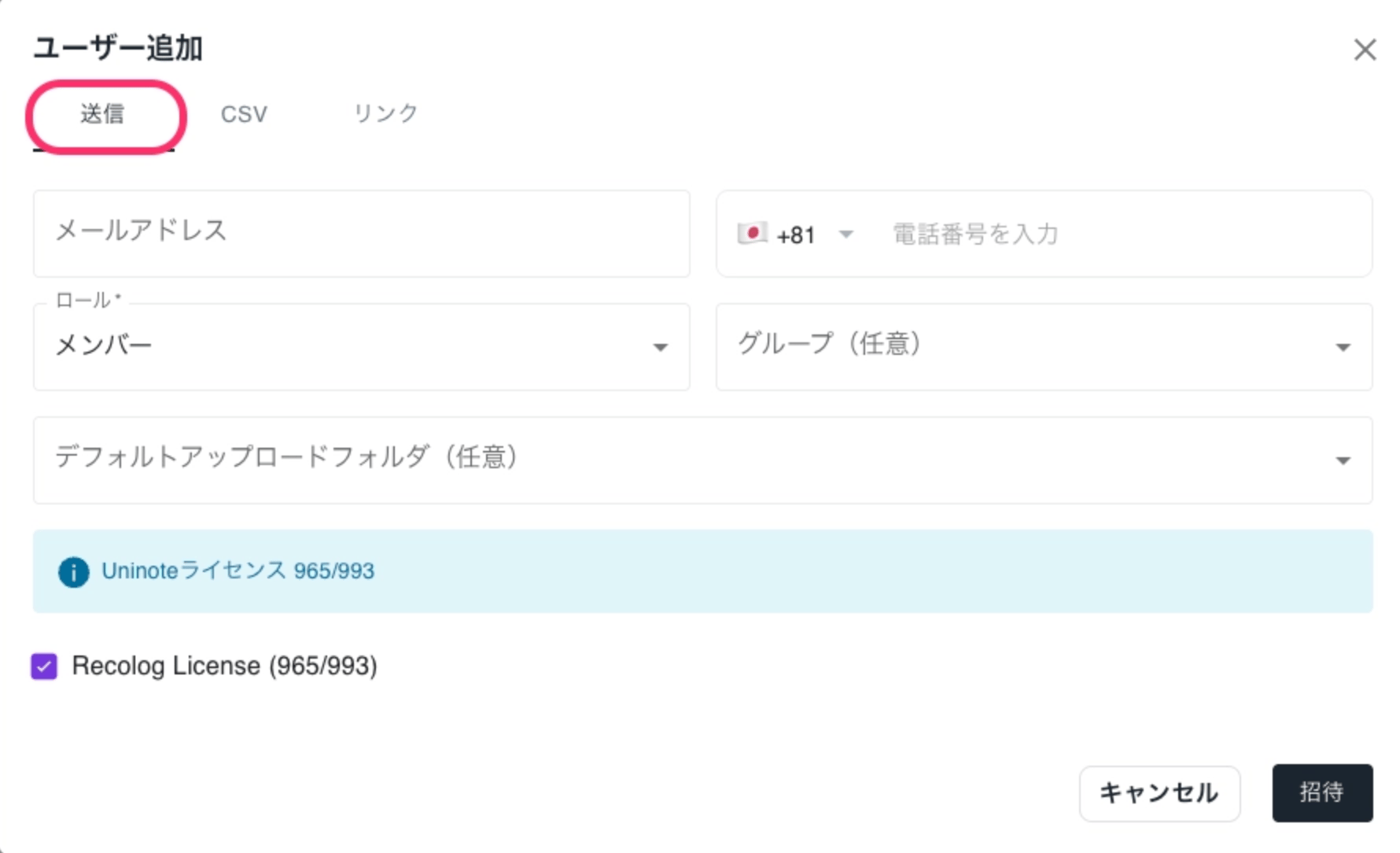 2. Set roles if necessary.
3. Click \[Invite] to complete.
📧 An invitation email will be sent to the target user. If not received, please check the spam folder.
Subject: `Invitation to join {Organization Name}` Sender: `noreply@mail.uninote.ai`
***
* Invite via CSV
1. Select \[CSV].
2. Obtain the template from \[Download CSV Template] and create your file.
2. Set roles if necessary.
3. Click \[Invite] to complete.
📧 An invitation email will be sent to the target user. If not received, please check the spam folder.
Subject: `Invitation to join {Organization Name}` Sender: `noreply@mail.uninote.ai`
***
* Invite via CSV
1. Select \[CSV].
2. Obtain the template from \[Download CSV Template] and create your file.
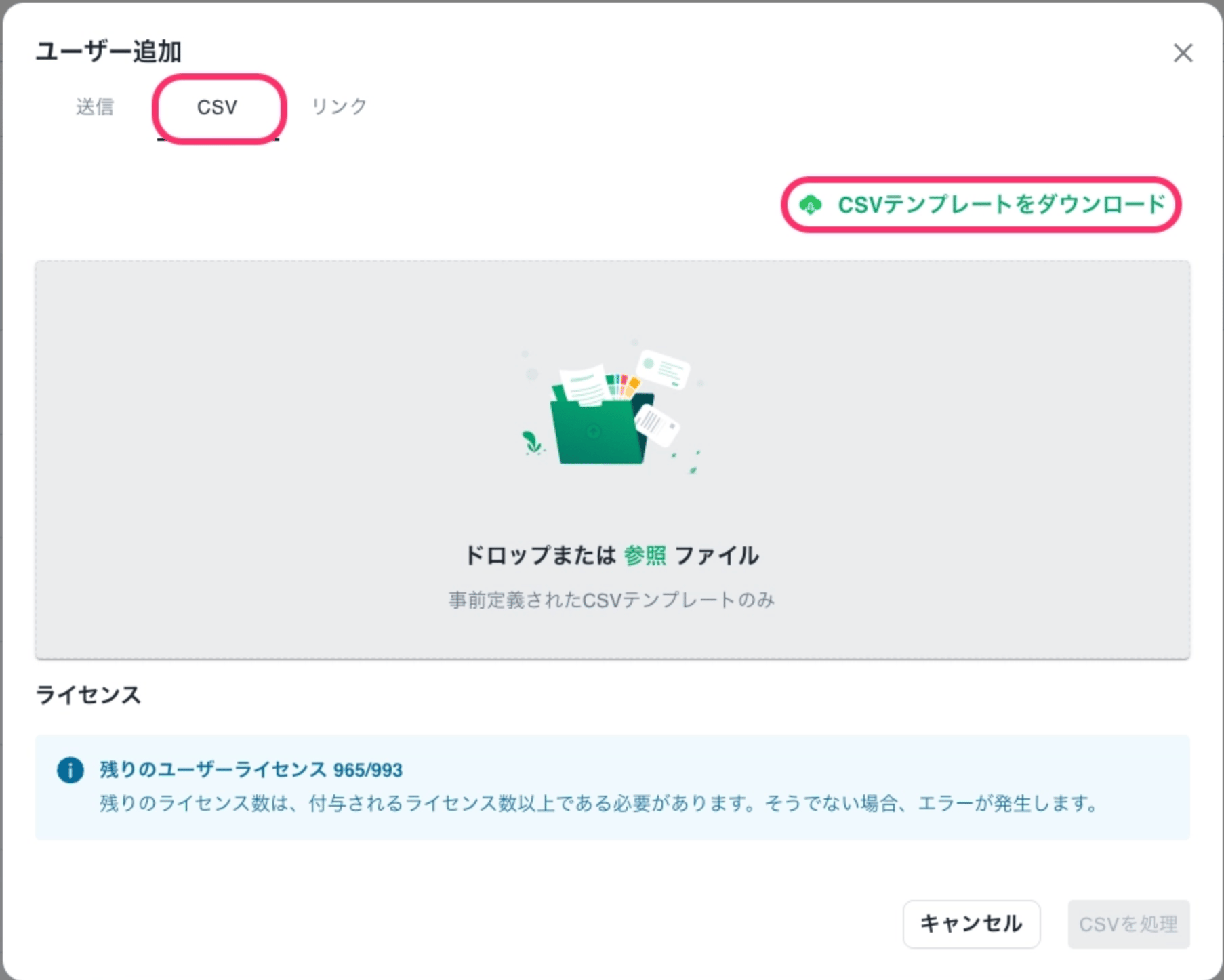 3. Upload the CSV.
4. Click \[Process CSV] to complete.
***
* Add via Invitation Link
1. Select \[Link].
3. Upload the CSV.
4. Click \[Process CSV] to complete.
***
* Add via Invitation Link
1. Select \[Link].
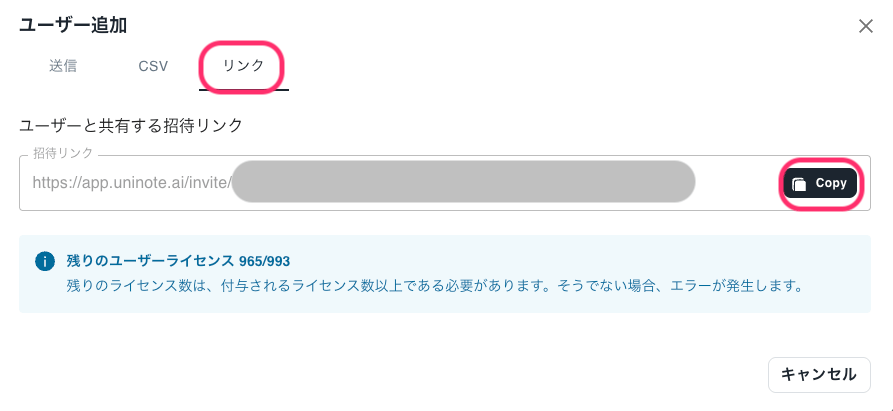 2. Press \[Copy] and share it with the intended recipients.
**Users who join via the invitation link will have the role of member by default.**
If you want to change to a different role, please edit the role in the \[Users] screen after the user has been activated.
***
👤 For information for invited users, please refer to: [**How do I log in after receiving an invitation?**](/en/woketaradouyatteroguinshimasuka)
🔐 Related: [**What are the types and differences of roles (permissions)?**](/en/rrunotoihadesuka)
2. Press \[Copy] and share it with the intended recipients.
**Users who join via the invitation link will have the role of member by default.**
If you want to change to a different role, please edit the role in the \[Users] screen after the user has been activated.
***
👤 For information for invited users, please refer to: [**How do I log in after receiving an invitation?**](/en/woketaradouyatteroguinshimasuka)
🔐 Related: [**What are the types and differences of roles (permissions)?**](/en/rrunotoihadesuka)