> ## Documentation Index
> Fetch the complete documentation index at: https://help.uninote.ai/llms.txt
> Use this file to discover all available pages before exploring further.
# パスワードを忘れてしまったときはどうすればいいですか?
パスワードを忘れた場合は、リセット画面から新しいパスワードを設定できます。
## A. リセット画面から新しいパスワードを設定できます。
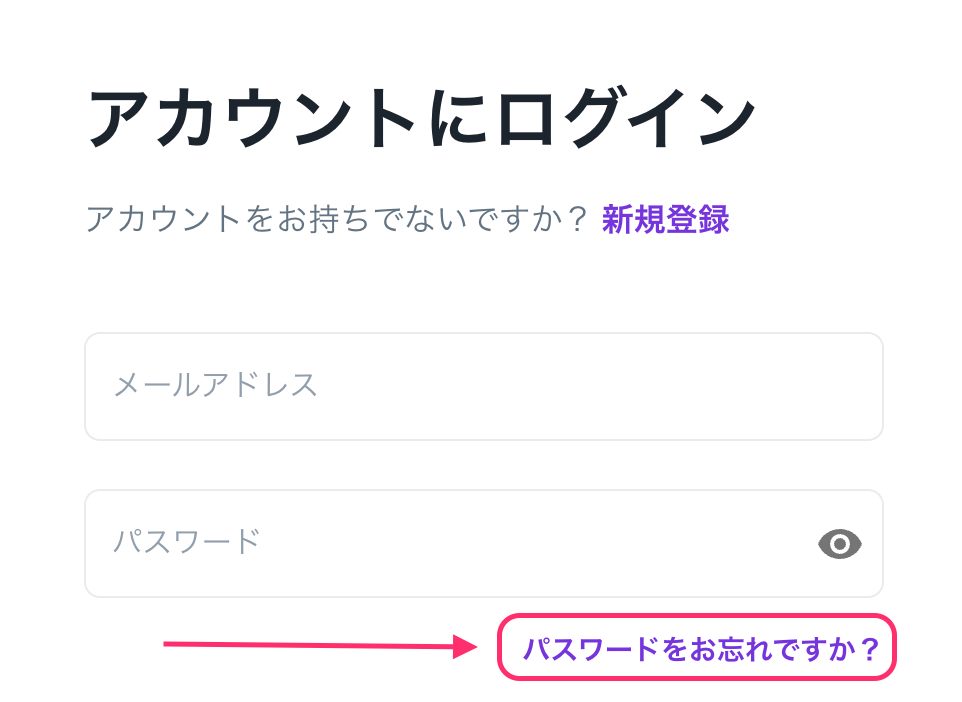
1. ログイン画面で[パスワードをお忘れですか?]をクリックします。
 2. 登録済みのメールアドレスを入力します。
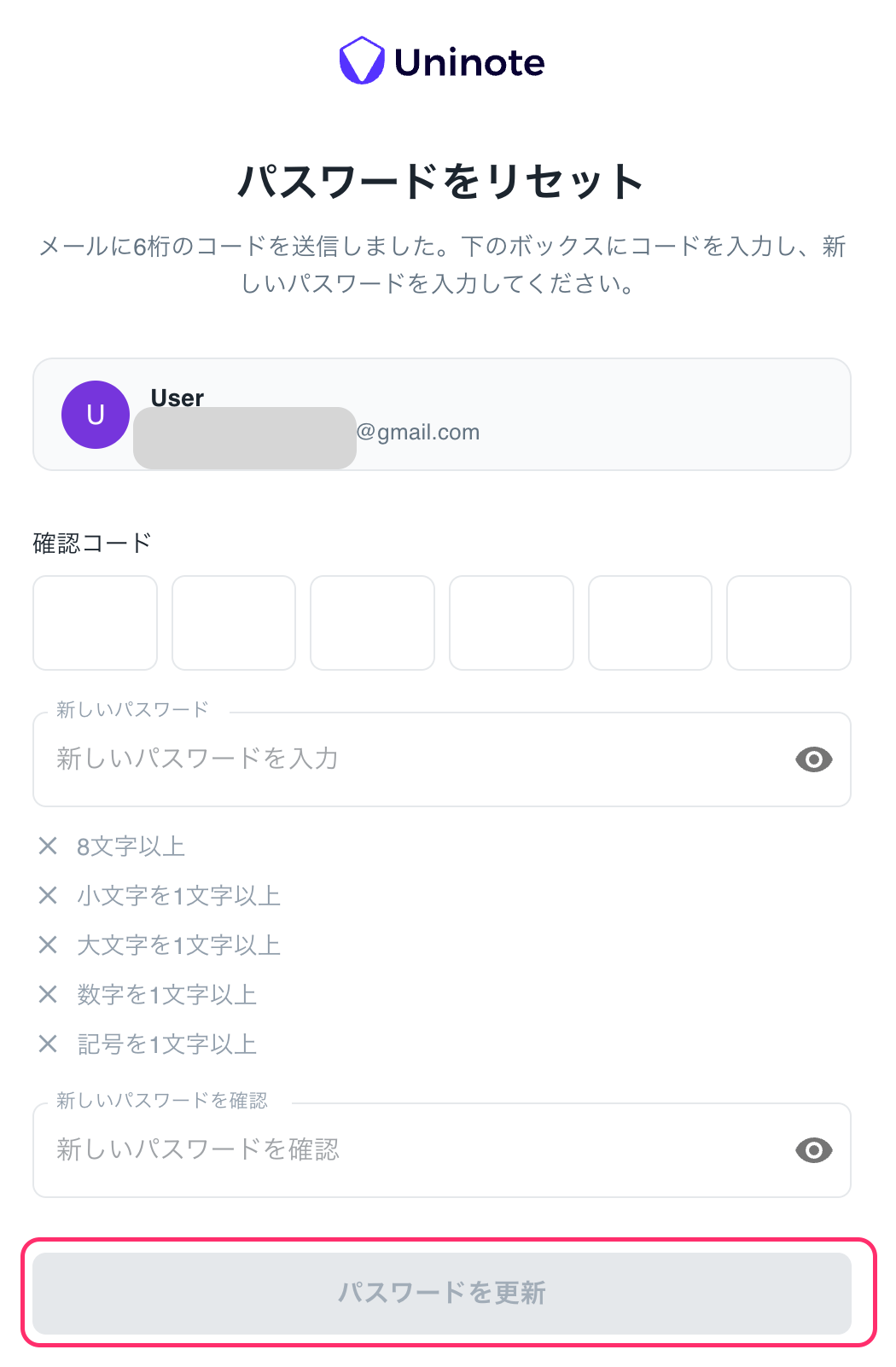
3. 6 桁の確認コードが届くので、確認コードと新しいパスワードを入力します。
件名:`Reset your Uninote password`
差出人:`no-reply@mail.uninote.ai`\\
2. 登録済みのメールアドレスを入力します。
3. 6 桁の確認コードが届くので、確認コードと新しいパスワードを入力します。
件名:`Reset your Uninote password`
差出人:`no-reply@mail.uninote.ai`\\
 ***
### 補足
* リセットメールが届かない場合は、迷惑メールフォルダをご確認ください。
* 登録したメールアドレスが分からない場合は、管理者にお問い合わせください。
***
### 関連ページ
* [Google / Microsoft アカウントでログインした場合、パスワードは設定できますか?](/ja/google-microsoft-akauntoderoguinshitapasuwdohadekimasuka)
***
### 補足
* リセットメールが届かない場合は、迷惑メールフォルダをご確認ください。
* 登録したメールアドレスが分からない場合は、管理者にお問い合わせください。
***
### 関連ページ
* [Google / Microsoft アカウントでログインした場合、パスワードは設定できますか?](/ja/google-microsoft-akauntoderoguinshitapasuwdohadekimasuka)