

Folders serve as a “storage” for organizing meetings. By storing meetings in a folder, sharing and management become easier.
- Folder members can be set as “default shared users.”
Things to Decide in Advance
- How to categorize folders (by department, project, client, etc.)
- Folder members (default shared users)
Steps: Creating a Folder
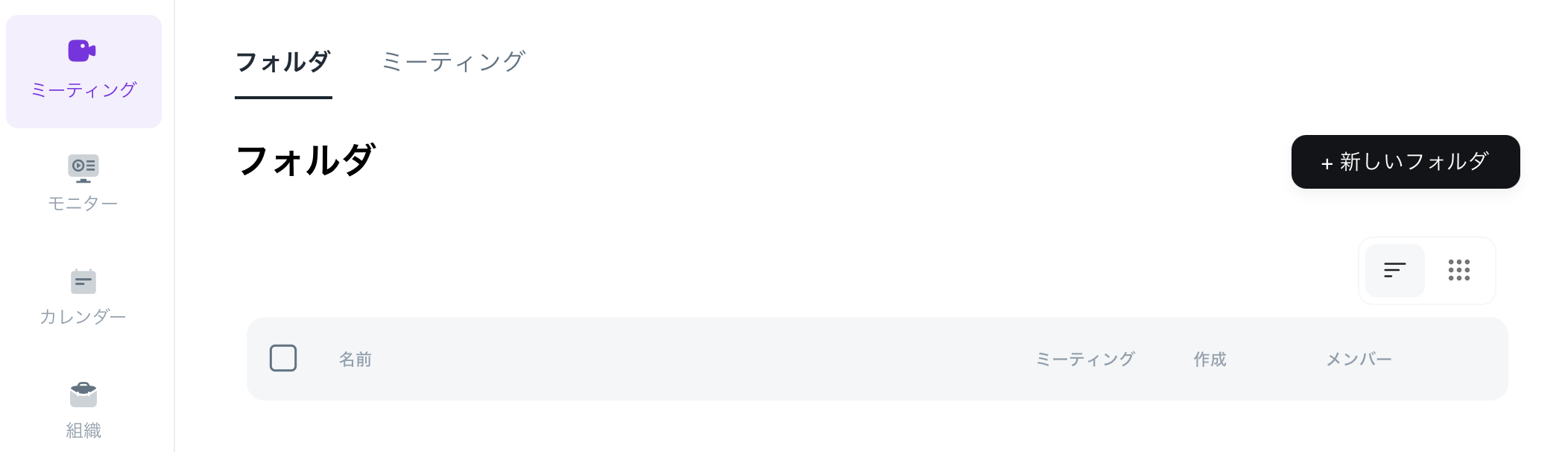
- Open the [Meetings] screen.
- Click on [+New Folder].\
- Enter the folder name.\
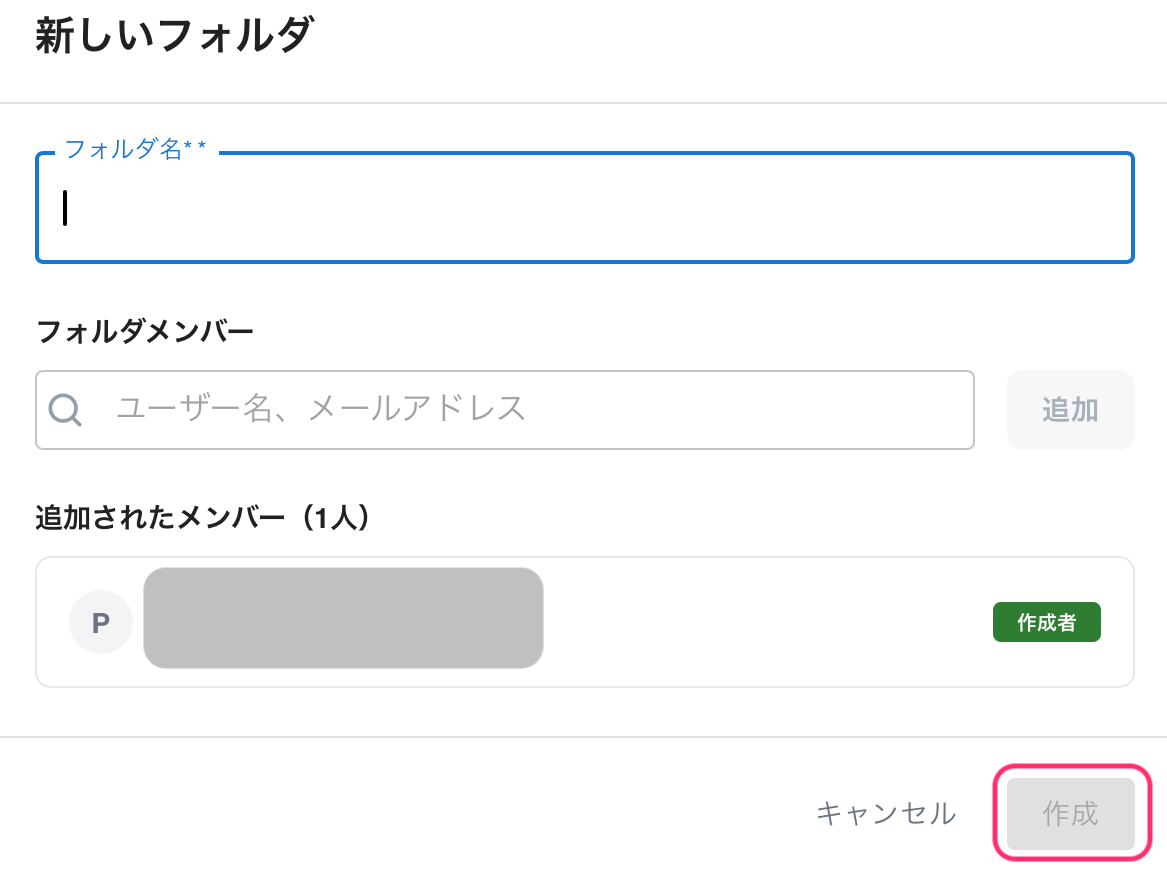
- If necessary, set the folder members (default shared users).
- Click [Create] to finish.
Examples of Folder Structure
- Example 1: By Client
- Examples:
- Company A (PoC)
- Company B (PoC)
- Company C (PoC)
- Benefits: Clearly identifies whose meetings they are, preventing confusion.
- Examples:
- Example 2: By Project (when spanning multiple initiatives or projects)
- Examples:
- CS Improvement Project
- New Feature Validation (PoC)
- Onboarding Implementation
- Examples:
- Example 3: By Department (when the user department is clear)
- Examples:
- Sales
- CS
- Development
- Examples:
Terminology Supplement
- Folder Members: Members who are “default shared” within the folder.
- Participants: Participant information obtained from the calendar. It does not imply viewing rights.